
Everything Keyverb does
AI help in every app on your PC: for the text you select, while you type, when you speak, and when you have a question. Each feature below can be turned on, off or changed in Settings.
Fix, rewrite or translate any text
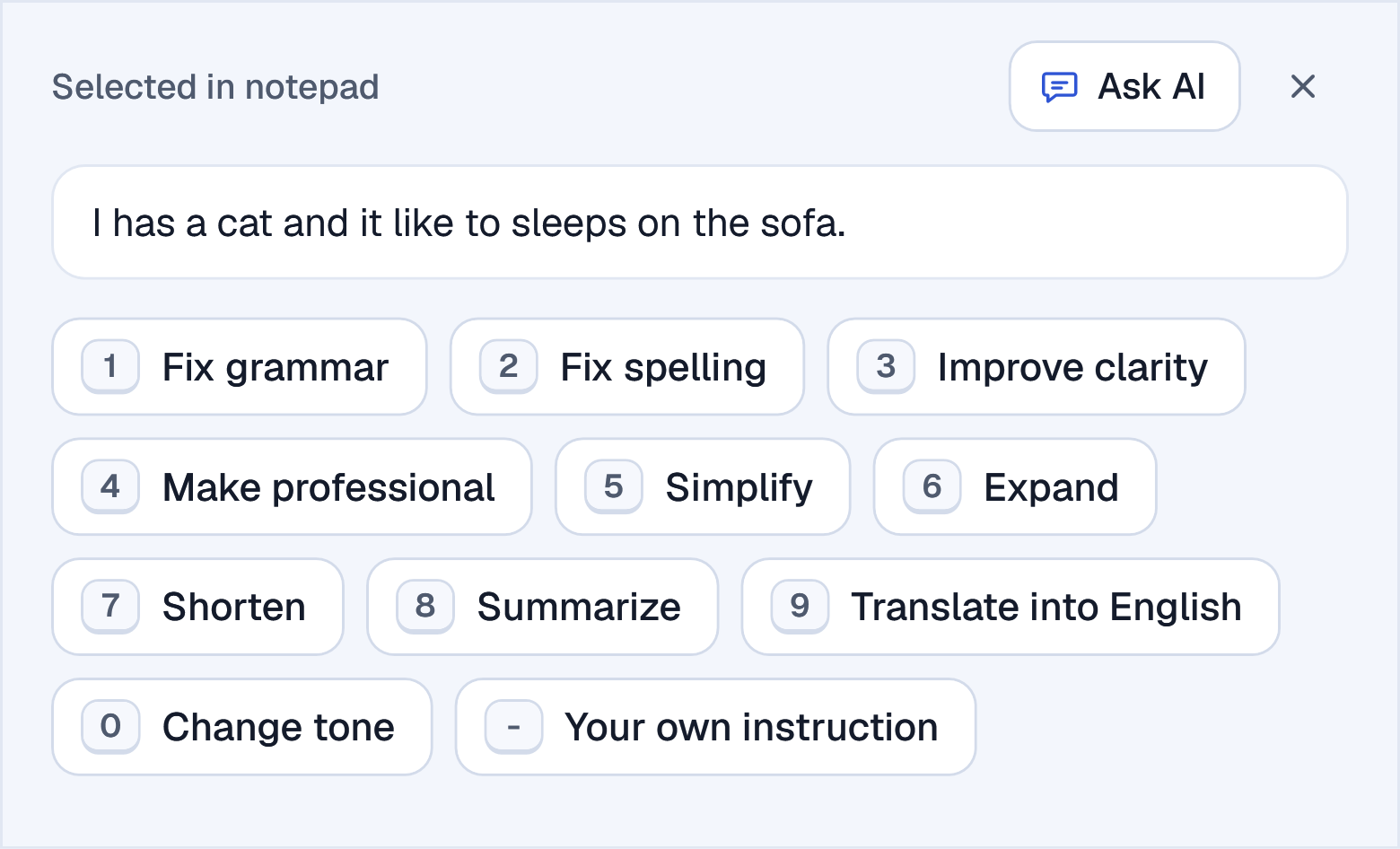
Select text in any app and press Alt+Z, or click the round ink-drop button. Choose what to do, see every change marked, then replace your text or copy the result.
- Fix grammar, Fix spelling, Improve clarity, Make professional, Simplify, Expand, Shorten, Summarize and Translate.
- Change tone: professional, friendly, formal, casual, persuasive, confident, polite, concise or technical.
- Your own instruction: tell it what to do in your words.
- Nothing in your document changes until you choose Replace. Every result is also kept in your clipboard history.
- No mouse needed: Alt+1 to Alt+9, Alt+0 and Alt+- press the panel's buttons, Esc closes it.
Help next to the text you select
Select text with the mouse or the keyboard, and a small bar shows where you let go: Ask AI, Fix grammar, Translate, and More for every action.
- It shows only for a selection you make yourself, and goes away when you click elsewhere, type, scroll or switch windows.
- Prefer a quieter screen? Show only Ask AI, open Ask AI at once, or turn the bar off.
- Works in code editors such as VS Code too.
Hi team, the launch are moved to friday because the testing take more time then we planned. Thanks for your patience.

Translate in one click
English text goes into your own language, and text in any other language goes into English, from the AI bar or Alt+Z. A row offers your other languages.
- 39 languages, with your own level in each: Native, Fluent, Still learning or Don't know it.
- By voice too: end what you say with "translate this into Spanish".
Can we move the review to Thursday afternoon?
¿Podemos pasar la revisión al jueves por la tarde?
- Spanish
- French
- German
- Arabic
- More…
Your next words, as you type
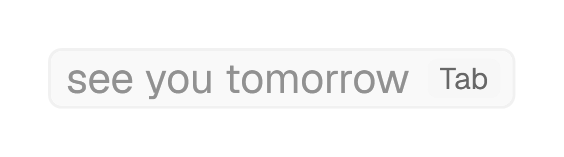
When you pause, grey words show after your cursor in the app you type in. Press Tab to take them, or keep typing to ignore them.
- Press ↑ for a row of next-word choices; ← and → move, Enter takes a word.
- Fits you: it follows what you wrote in About you and your level in English.
- In English. Off until you turn it on, after reading what it sends. Paid plans.
Thanks for sending the report. I will read it tonight and
Spelling fixed when a sentence ends
When you finish a sentence with a full stop, a question mark or an exclamation mark, the AI reads the whole sentence and fixes the misspelled words, including real words used wrongly.
- Choose: fix the word at once (Backspace right after puts yours back), or show the fix next to the word.
- A word you put back is remembered and never fixed again.
- Code editors, names and addresses are left alone. In English; on or off from the tray icon too.
I will recieve receive the files tommorow tomorrow.
Fixed when the sentence ends. Backspace puts your word back.
Speak, and your words are typed
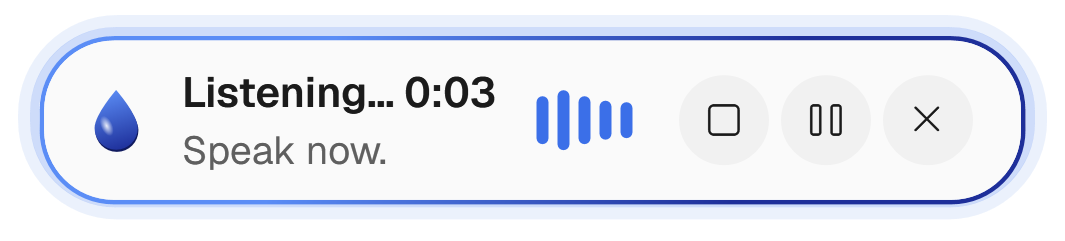
Press Alt+A and talk. Keyverb leaves out the ums, adds punctuation, and types everything at once where your cursor is when you press Stop.
- Stop (Alt+Q) types your words, Pause or Play (Alt+W) waits, Close (Alt+E) throws them away. Or hold Alt+A while you speak and let go.
- End with an instruction: "make it formal", "make it a list", "translate this into German".
- Select text first, and what you say is an instruction for it, such as "make this shorter", with the change shown before it is made.
- Starts only where you can type, and pauses by itself after a quiet minute (you choose 1 to 10).
- Choose your microphone and test it in Settings. 39 languages, written as you speak them.
Ask about your text, or anything else
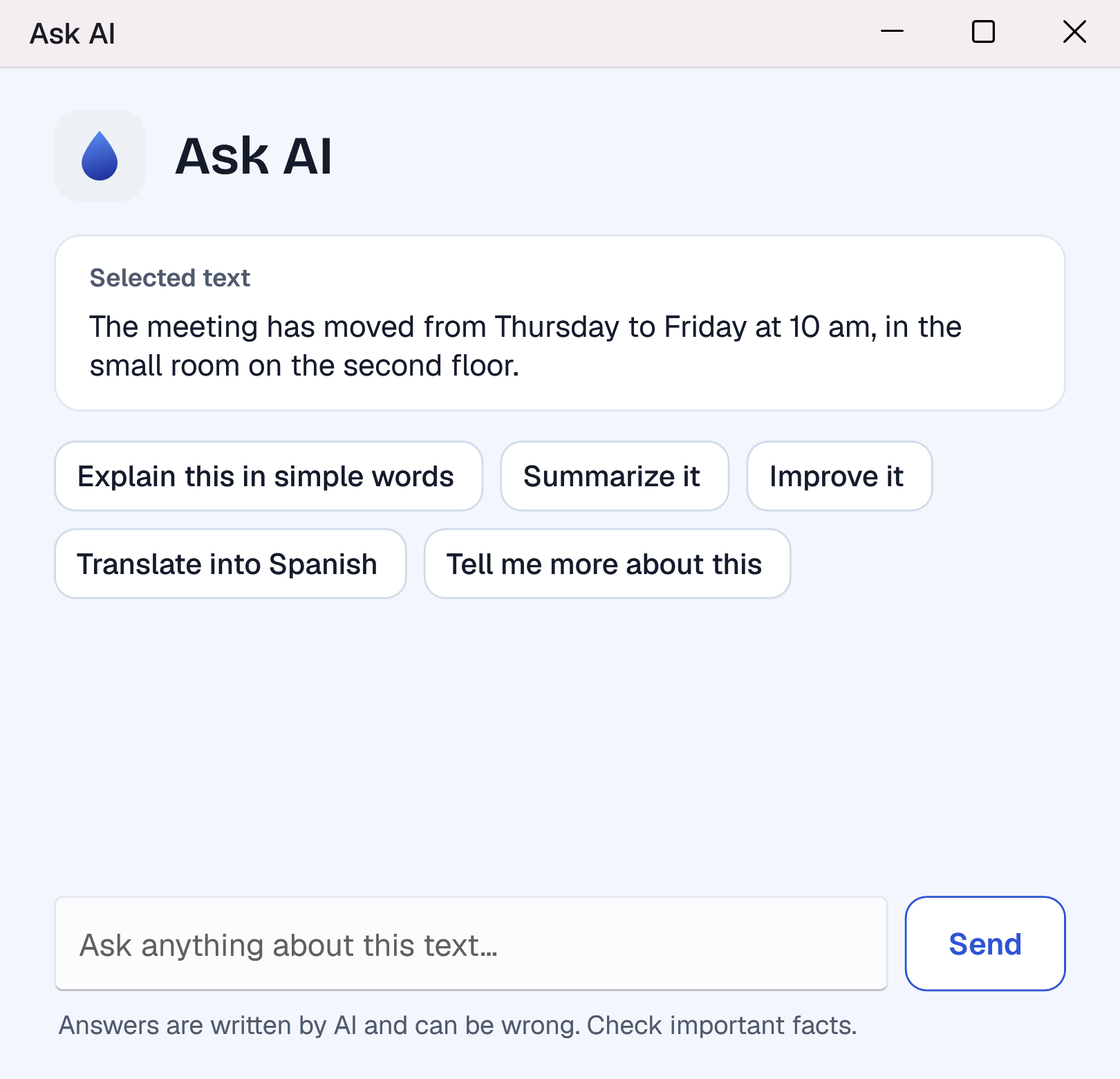
Ask AI on the bar opens a chat about the text you selected, with quick questions: explain, summarize, improve, translate. The general chat, from the tray icon, takes any question.
- Your chats are saved encrypted on your PC and listed at the side.
- Speak your question with the microphone next to Send.
- It searches the web for current information and shows its sources.
- Answers in clear paragraphs and lists, marked as written by AI.
Ask how to do something in Keyverb
Help AI is the first page of Settings. Ask in your own words, such as "How do I change the voice key?", and it answers, then opens the setting and lights it up.
- It changes nothing by itself: you stay in control.
- A question about the app asked in Ask AI is handed over to Help AI.
How do I make voice wait longer before it pauses?
Open Settings › Voice and choose how long without words before voice pauses: 1, 2, 3, 5 or 10 minutes.
Open Settings › VoiceClipboard history
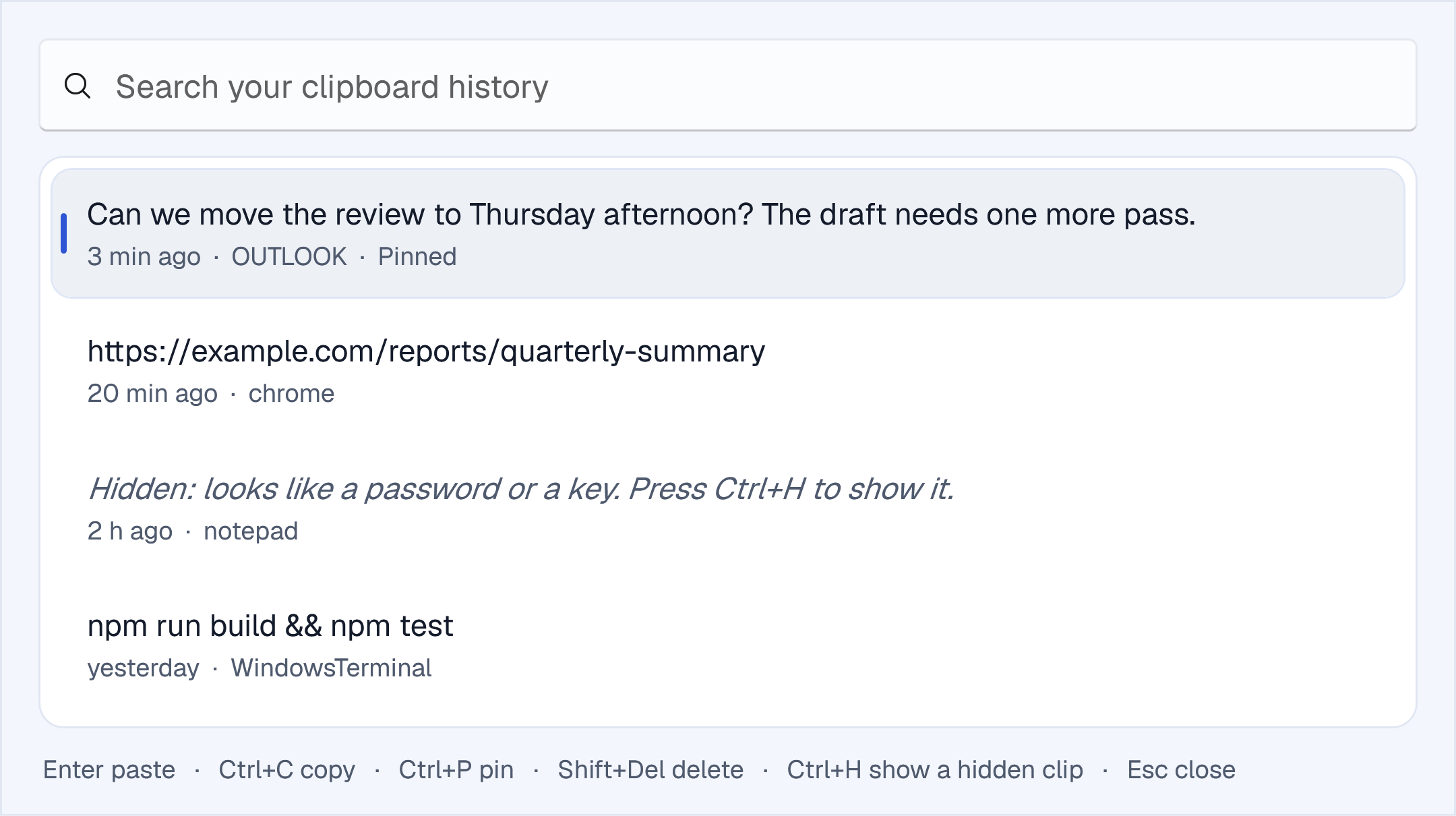
Everything you copy, searchable, on your PC. Press Alt+X or click the tray icon, type to search, and press Enter to paste.
- Pin the clips you need often (Ctrl+P); pinned clips are kept.
- Copies from password managers, and copies other apps mark as private, are never saved.
- A clip that looks like a password, a key or a card number is kept hidden (Ctrl+H shows it) and never sent to the AI.
- Encrypted on your PC; kept 30 days unless you choose another time. Pause it for 15 minutes or an hour from the tray.
Writes like you
Describe yourself and how you write, once, in your own words: your name, your work, the people you write to, your greetings and sign-offs.
- Suggestions, spelling, Alt+Z, voice and Ask AI all follow it.
- Ask for a detail and it is filled in: say "type my office address".
- Up to 4,000 characters, saved encrypted on your PC.
I am Sam, a project manager. I write short, friendly e-mails to clients. I start with "Hi" and end with "Thanks, Sam".
Your languages, at your level
English comes first; add the languages you use after it. Give each one your level, and the AI writes to match: plain, correct words where you are still learning, natural ones in your own.
The languages and levels- English Fluent
- Spanish Native
- German Still learning
Every key is yours to choose
Every shortcut can be changed in Settings › Keyboard shortcuts: click its keys and press new ones. It works at once.
- Keys that Windows or most apps need, such as Ctrl+C or Alt+F4, are refused, with the reason.
- A round arrow puts one shortcut back; Reset all puts every one back.
- Fix, rewrite or translate Alt+Z
- Voice Alt+A
- Clipboard history Alt+X
- Turn on or off Alt+J
On, off, and where things sit
Press Alt+J anywhere to turn all of Keyverb off, and again to turn it on. While it is off, nothing works and the clipboard history saves nothing.
- The round ink-drop button: at the corner of the window you work in, in one place at the edge of the screen, or next to your cursor; small, medium or large; or hidden.
- Start with Windows, or not.
- Light and dark, in Windows' own style.
Alt+J turns everything off and on, from any app. It stays off after a restart until you turn it on.
One account, up to 5 PCs
Use Keyverb on your laptop and your desktop with one account; your plan's limits are shared. See your devices, and sign one out, in the app or on this website.
- Sync your settings, About you and kept words between your PCs, if you turn it on. They are locked on your PC with your own 32-character sync code before they leave it, so no one else can read them.
- Or save your setup in a file locked with a password, and load it on the other PC.
- Your clipboard history and chats never leave your PC.
- Work laptop This PC
- Home desktop Sign out
Light, quiet and accessible
Keyverb runs in the background next to the clock and uses well under 1% of one processor core in everyday use.
- Works in the apps where you write: see the tested apps.
- Every button has a name for screen readers, and the panel works without a mouse.
- Updates itself, and checks each update's signature before it is installed.
- Installs for your own Windows account, without administrator rights.
Windows 10 (1809 or newer) and Windows 11, 64-bit.
- Screen readers
- Keyboard only
- Automatic updates
- No admin rights